Posts

How to populate Look up column in SharePoint List using Canvas Apps
Image
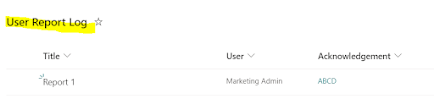
 Hello !!!! Hope you are doing well. Welcome to Anything & Everything in Tech blog. In this blog, I will explain you how to populate look up column while creating a list row in SharePoint using Canvas Apps. I have a list called " User Report Log " and a look up column named " Acknowledgement " which is derived from Acknowledgements list.  For every operation in my canvas app I am creating a list item nothing but recording the user activities. Was wondering how to populate the Acknowledgement column? Well no issues, I used Patch request to create list item with the below format. Patch( 'User Report',         Defaults('User Report'),         {             Acknowledgement: {                 '@odata.type': "#Microsoft.Azure.Connectors.SharePoint.SPListExpandedReference",                 Id: ThisItem.ID,       ...

How to populate Person column in SharePoint List in Canvas Apps

Image
 Hello Everyone!!! Welcome to Anything & Everything in Tech. In this blog I will guide you how to create SharePoint list record which has Person column. I have a list called User Report which has a person column named User On each and every operation of the user a log record is created from the canvas apps. We all know using patch request we can create a row in the list but there comes the problem how to pass the person value in it??. Well the rescue steps are here by, use the below format in your patch request to populate the person column  User: {             '@odata.type': "#Microsoft.Azure.Connectors.SharePoint.SPListExpandedUser",             Department: "",             Claims: "i:0#.f|membership|" & Lower(User().Email),             DisplayName: User().FullName,             Email: User().Email,       ...

{How to fetch more than 256 rows from Excel using Power Automate}

Image
 Hello Everyone!!!. Welcome to Anything & Everything in Tech knowledge store. Today I have a very simple topic to share with all my readers. Let me dive into the topic very quickly. I have a simple task using Power Automate I need to fetch all rows of excel and get the count of Unique Customers. I have an excel with the necessary columns and I am using List rows present in table action from Excel online business connector as shown below. I mentioned all the necessary inputs required to pull the data and everything seems to be fine. Unfortunately, I am able to fetch only 256 rows but my Excel has 10,000 rows. Now I am stuck as I could not get the actual data of the table. After exploring the options of the action I figured out, there is something called Pagination  turning it on can bring in more data. Just click on Settings of the List rows present in a table action and you will see something called Pagination and threshold . Turn on the Pagination and specify the Thre...

How to include {Custom Pages of Model Driven App} within the solution

Image
 Hello All. Welcome to Anything & Everything in Tech blog. Today's post is about adding custom pages to the solution. Custom Pages are similar to canvas apps but they can be included within the Model Driven Apps as a page. To move the custom page across solutions there is a easy way using solutions. I have a custom page called " Product Inventory " where I am displaying it in my model driven app as shown below Now everything is in place I just need move this page across environments to make it available. To do that lets add the solution. I created a solution and use Add Existing ->App->Page Select page and include you custom page as shown below. In this way you can include custom pages within the solution. Hope this post helped you. Please do follow and subscribe for more insights

Unable to see Power Automate flow for a selected item of SharePoint List

Image
Hello All!!!. Welcome to Anything & Everything in Tech blog :) Hope all is well. Today's post is very simple but tricky to find why power automate flows are not showing up for SharePoint Lists. I created a flow named " Acknowledgement Flow " on SharePoint List " Acknowledgements ". Everything is simple and straight forward but now the actual problem comes up where I am unable to see my flow. Screenshot of the flow is below. I verified everything like the SharePoint site, SharePoint list and the final one the trigger of the flow which is nothing but " For a selected item " trigger surprisingly all required checks are passed. But still I am unable to invoke my flow from the list item. After so much of investigating I am able to figure out the issue which is very minor. The reason why I am unable to see my flow is due to the Environment . For a flow that needs to be available on any list item have to be created in Default Environment . I re-created ...

How to use Google fonts in your Web Page

Image
Welcome to Anything and Everything in Tech blog! Today's tip is how to use google fonts in your web applications. CSS has inbuilt support for a wide variety of fonts. However, Google fonts are not recognized by CSS. Let's look at the sample HTML. This is a sample text that should be displayed in Noto Sans It uses Noto Sans as font. When I browse the HTML file, the font does not take effect. To refer to Google fonts, we need to refer to Google stylesheet. <link rel="stylesheet" href="https://fonts.googleapis.com/css?family=<google-font-family>" /> In our case, the URL should be referring to Noto Sans format. <link rel="stylesheet" href="https://fonts.googleapis.com/css?family=Noto+Sans" /> Hope this helped! Please subscribe to our blog for more interesting posts on tech.

How to display AM/PM for a Date field in Canvas Apps

Image
Hello All !!!!.  Welcome to our  Anything & Everything  in tech blog 😊😊.  The topic for today is on Microsoft Power Apps and in this post I will show show AM/PM for your date fields. Canvas apps are the leading low code framework for mobile apps and custom user interfaces. One of the powerful feature being able to bring in data from multiple data sources using just connectors. They are just termed as One Click Data from Multiple Platforms Let me jump in to the topic. I have a requirement to display display a date with AM/PM.  Unfortunately, Canvas apps function reference does not have any function to do this. However you can use the ubiquitous Text function to do it. $"{Text(Today(), "dd/mm/yyyy, hh:mm am/pm ")}" Within the Text() you can pass your date field and specify the desired format. Observe the part highlighted in bold - am/pm . I have seen implementations where makers end up using switch case on the hour field to determine AM/PM time. In the belo...